
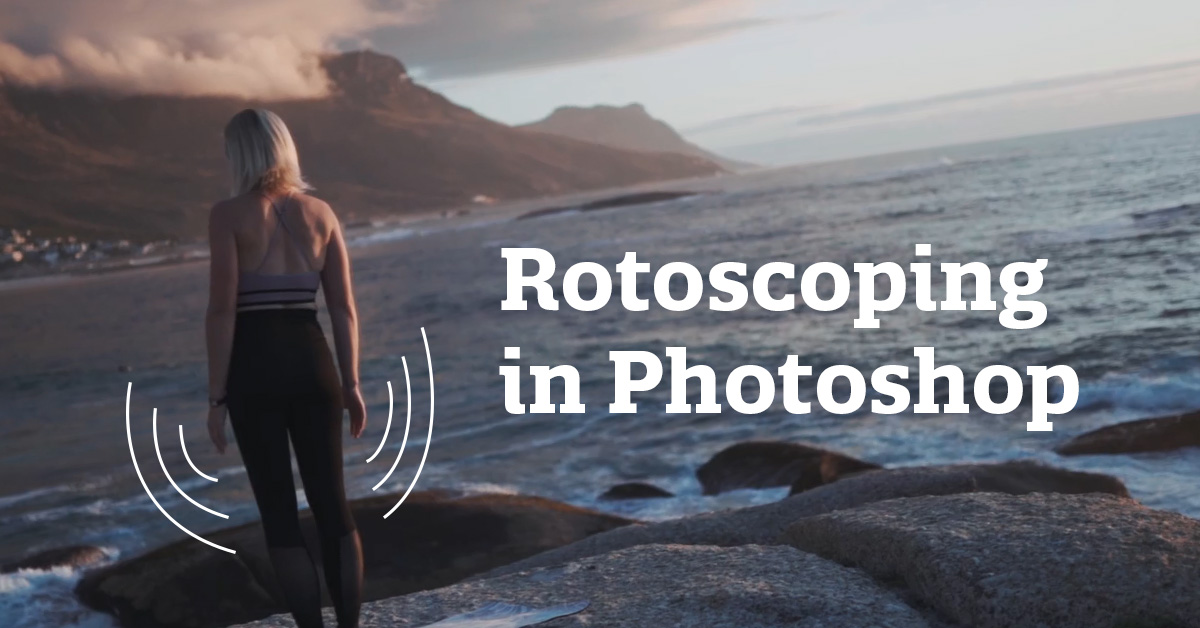
Welcome to our latest tutorial on creating rotoscope-style animations using Adobe Photoshop! In this post, we will walk you through the essential steps to bring your animations to life and add a unique touch to your projects.
Getting Started
To kick things off, you’ll need to set up your workspace in Photoshop. Start by creating a new file using the Film and Video preset. Here, we’ll select 720p video as the canvas size. Click Create, and your new blank canvas will appear.
Make sure your workspace is configured correctly. Navigate to Window > Workspace and select Motion. You’ll notice that this layout includes the timeline at the bottom, which is crucial for managing your video frames.
Importing Your Video
Now it’s time to add the video you want to animate. Go to File > Place Embedded. This allows you to link your video as a smart object. I’ll be using a video of a woman practicing yoga by the ocean that I found on Pexels. Once you select your video and place it on the canvas, keep in mind that even if it’s 1080p, Photoshop will automatically scale it down to fit your 720p canvas.
Next, to make your video editable, create a timeline by selecting Create Video Timeline. You can play your video using the space bar to see how it looks.
Adjusting Frame Rate and Trimming
For this project, let’s adjust the frame rate. The original video is at 24 frames per second, but we’ll reduce it to 12 frames per second for a stylized effect. To do this, locate the timeline menu and adjust the Timeline Frame Rate accordingly. You’ll notice a reduction in the number of frames on the timeline.
Next, we want to trim our video to a manageable length. I’ll start where the lady is getting into position and trim the beginning. Use the Trim Start at Playhead option to cut off any unnecessary sections. Then find the end point of your desired animation and use Trim End at Playhead to finalize your clip. For this example, we’ll keep it to just 4 seconds.
Creating Your Animation
With our video set up, it’s time to start adding some creativity! Create a new layer by selecting Layer > Video Layers > New Blank Video Layer. Now you can begin drawing. I recommend starting simply – I’m using a basic white brush to add movement lines around the end of the dancer’s arms.
To aid in the animation process, enable Onion Skinning. This feature displays the previous and current frames, helping you track your character’s movements. As you progress through each frame, just draw what you see while occasionally looking back to ensure fluid movement.
Bringing It All Together
Keep repeating this process for each frame, adding your own artistic flair! Remember, it doesn’t have to be complicated. The goal is to have fun and practice your rotoscoping skills. Once you’ve completed several frames, turn off the onion skins and preview your work by hitting the space bar.
And there you have it! A simple yet effective way to create a rotoscope animation using Photoshop. We hope this tutorial inspires you to experiment with your style and techniques.