
In this lesson, you will learn about the different components of a video file. You will then learn two different methods for exporting a video file out of Premiere Pro.
Learning Targets
- The learner will recognize the different export formats and will create a final slideshow.
Understanding Video Formats
Unlike image and document files you’re accustomed to working with, video formats have several different facets that make them difficult understand. Just because a file has a .avi extension on the end, does not necessarily mean you can play them back on the computer. You need to break down the container of the file and look at the video and audio codecs used to encode the file.
File Containers
As mentioned above, video files are contained in a single file. Depending on the file format, several different codecs can encode the data within the files. Before we look at the codecs used to encode the data, let’s look at some common file containers.
Audio Video Interleave (AVI)
While an older file format, it’s flexible and able to store uncompressed video. Support for this file is built into Microsoft’s operating system.
QuickTime File Format (MOV)
Based on the MPEG-4 standard, support is built into Apple’s operating system.
Windows Media Video (WMV)
A highly supported file format, built into the Windows operating system.
MPEG-1 (MPG)
A very old standard, but supported almost everywhere.
MPEG-4 Part 14 (MP4)
Creates a highly optimized file, suitable for streaming over the internet.
For a more complete list, please visit here: https://en.wikipedia.org/wiki/Video_file_format
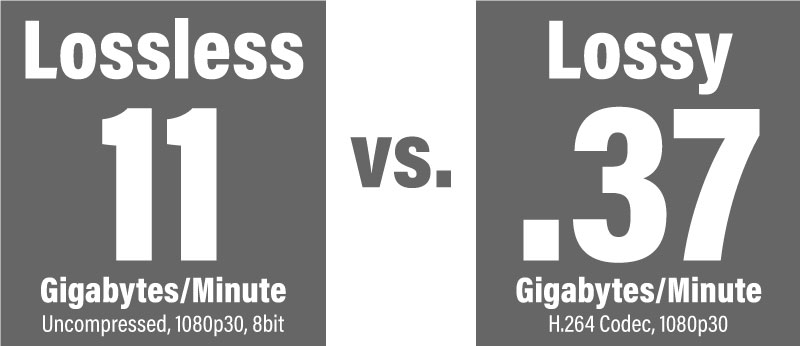
Due to the size of the video, most file formats employ some form of compression to save space. According to the Omni Calculator website, a 1080, 30fps, 8-bit video generates over 11 gigabytes of data for 1 minute of video. For a 30-minute video, the final file would be over 335 gigabytes in size.
Obviously, this is an obscene amount of space to account for, which brings the need for compression to be applied to video data. Using an H.264 codec to encode the video, a Canon 5D Mark II will compress the 30-minute video above to 11 gigabytes in size (according to the Omni Calculator website). In this instance, the camera manufacturer has chosen to employ a codec that offers a good balance of performance and compression to provide the end user with a usable file that doesn’t require too much space to store. In most situations, using a lossy codec to encode the video is fine. However, there are times, where files need to be archived and a lossless codec will be used for archiving purposes.
Understanding Codecs
Inside each of the file containers above, there is a video and audio track that needs to be compressed. This is where a codec for video comes into play. Each codec uses a balance of performance and compression to shrink the video and audio for display. The H.264/MPEG-4 AVC codec is the most common codec used for video. It’s a standard format supported by streaming services on the web, and what I recommend you use for the purposes of this training.
Exporting a Final Project
Video Overview
In this video, you will see how to export a video as an internet-ready H.264 file. You can export this file directly from Premiere Pro, or you can queue files using Adobe Media Encoder to encode later.
Your Turn
Once your slideshow is complete, you can export a final file. Use the H.264 format and choose the Match Source – High Bitrate preset to encode the final project. This preset will give you a good, high-quality file to show others. If the file size is too large, you can choose the Match Source – Medium Bitrate preset. It’s your choice as to whether you direct export from Premiere Pro, or use Adobe Media Encoder. Both will give you the same results.
Text adapted from:
“Video File Format” by Wikipedia is licensed under CC BY SA 3.0
“Video Coding Format” by Wikipedia is licensed under CC BY SA 3.0
“Video Codec” by Wikipedia is licensed under CC BY SA 3.0
“MPEG-4 Part 14” by Wikipedia is licensed under CC BY SA 3.0

This text is licensed under a Creative Commons Attribution-ShareAlike 4.0 International License.